

How to Use Lightbeans Textures in SketchUp
A guide to importing Lightbeans PBR textures in SketchUp.
What Is Lightbeans and Why Use It in SketchUp?
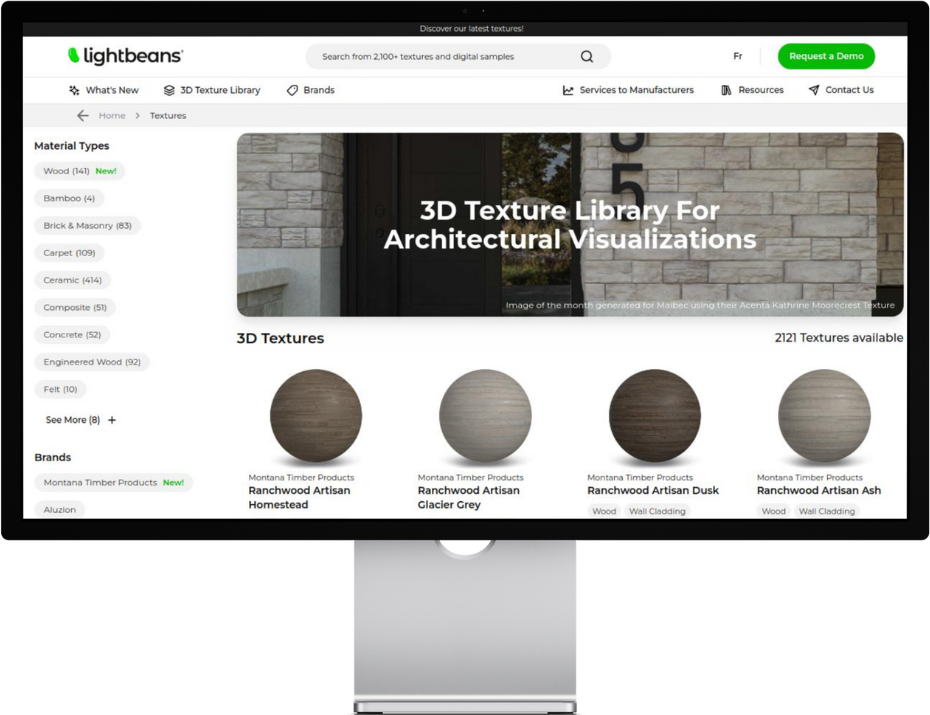
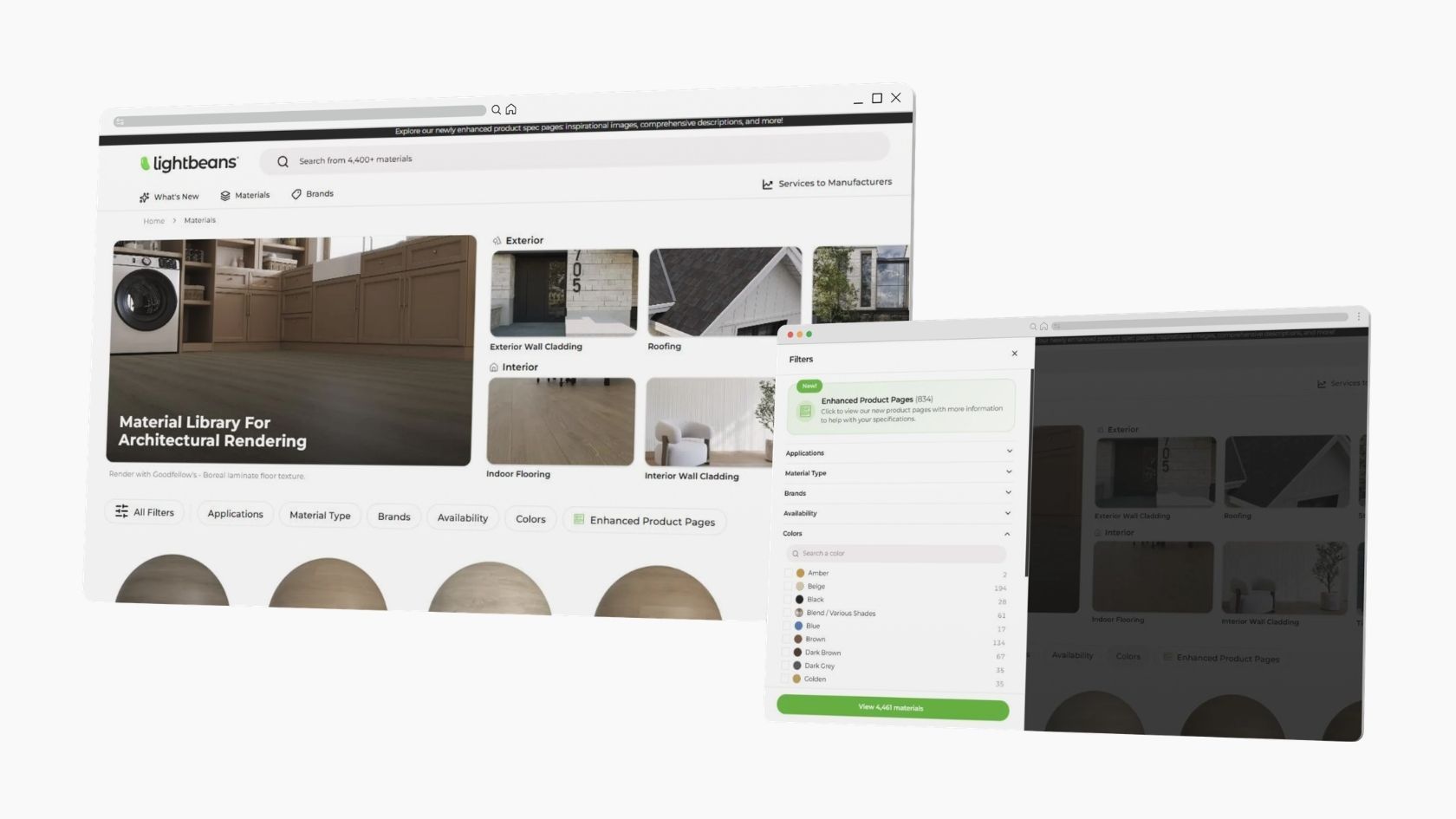
Lightbeans is a professional library of photorealistic PBR (Physically Based Rendering) textures used by architects, designers, and visualization artists. Every texture on Lightbeans is a seamless, tileable PBR material set scanned directly from a physical brand product, so the finishes in your renders match a product your client can actually specify and order. Free downloads for commercial and educational use are funded by the brands.
SketchUp is a widely used 3D modeling software for architecture, interior design, and construction. From 2025 onward, SketchUp's native renderer supports Normal, Roughness, and Ambient Occlusion maps in addition to the base color texture, significantly improving material realism without a third-party render engine. For full PBR support including Displacement maps and path-traced lighting, SketchUp is compatible with a range of powerful render engine plugins. This guide covers how to import Lightbeans textures in SketchUp natively, how to use the Lightbeans SketchUp plugin for automatic integration, and how to connect each supported render engine.
The Lightbeans SketchUp Plugin (Recommended)
The fastest and easiest way to use Lightbeans textures in SketchUp is the free Lightbeans SketchUp plugin, available in the SketchUp Extension Warehouse.
The plugin lets you browse the full Lightbeans library from within SketchUp and import textures with a single click. Before importing, go to Settings in the plugin and select your render engine. The plugin will then automatically download the correct maps and configure the material for that engine — no manual file management required.
Supported render engines in the plugin:
- Enscape
- V-Ray
- Sketchup Only (also compatible with SU Podium)
If textures aren't displaying correctly in SketchUp, try the following steps: 1. Go to the Window > Preferences > Graphics menu. 2. In the Graphics Engine section, select the “Use the new graphics engine” option. 3. Verify that the Lightbeans extension is up to date in the Extension Manager. 4. Restart SketchUp.
For full PBR support including Displacement maps and path-traced lighting, a render engine plugin is required. See the sections below.
Render Engine Integrations
Enscape
Enscape is a real-time rendering plugin for SketchUp that supports the full Lightbeans PBR workflow including Color, Roughness, Normal, and Displacement maps. The Lightbeans SketchUp plugin has native Enscape support — select Enscape in the plugin settings to auto-configure all maps.
For the complete step-by-step guide: How to Use Lightbeans Textures in Enscape
V-Ray
V-Ray for SketchUp is a professional render engine by Chaos that supports the full Lightbeans PBR workflow. The Lightbeans SketchUp plugin has native V-Ray support — select V-Ray in the plugin settings to auto-configure all maps.
For the complete step-by-step guide: How to Use Lightbeans Textures in V-Ray
SU Podium
SU Podium is a rendering plugin for SketchUp by Cadalog. It supports a material property system with Bump, and Refraction controls applied on top of SketchUp's native materials. To use Lightbeans textures with SU Podium:
- Download a material from the Lightbeans SketchUp plugin
- Apply it to a surface in your model
- Open the SU Podium Material Properties dialog
- Select the face or material you want to configure
- Adjust the Reflection and Bump sliders to match the material's physical properties
- Click Apply to confirm the properties
For further reference on SU Podium material properties, consult the official SU Podium materials documentation and the SU Podium V2 user guide.
D5 Render
D5 Render is a real-time path-tracing render engine with a SketchUp plugin. It supports the full Lightbeans PBR workflow including displacement.
For the complete step-by-step guide: How to Use Lightbeans Textures in D5 Render
Twinmotion
Twinmotion is an Unreal Engine-based real-time visualization tool with a direct SketchUp sync plugin. It supports the full Lightbeans PBR workflow.
For the complete step-by-step guide: How to Use Lightbeans Textures in Twinmotion
Lumion
Lumion is a real-time architectural visualization software with a SketchUp LiveSync plugin. It supports full PBR texture import from Lumion 2023 onward.
For the complete step-by-step guide: How to Use Lightbeans Textures in Lumion
Frequently Asked Questions
Does SketchUp support PBR textures natively? Partially, from SketchUp 2025 onward. The native material editor supports Color, Normal, Roughness, and Ambient Occlusion map inputs. Displacement maps and path-traced lighting require a render engine plugin such as Enscape, V-Ray, D5, Twinmotion, or Lumion.
What is the Lightbeans SketchUp plugin? The Lightbeans SketchUp plugin is a free extension that lets you browse and import Lightbeans real-world textures directly from within SketchUp. When your render engine is selected in the plugin settings, all PBR maps are downloaded and configured automatically. It is available in the SketchUp Extension Warehouse.
Which render engines does the Lightbeans plugin support? The plugin currently supports automatic map configuration for Enscape and V-Ray. For other render engines, download textures manually from lightbeans.com with the correct target application selected.
Tips for Best Results
- Install the Lightbeans SketchUp plugin. It eliminates manual file management and configures all PBR maps automatically for Enscape and V-Ray.
- Select your render engine in the plugin settings before importing. The plugin downloads different file packages depending on your render engine selection. Setting it correctly upfront saves having to re-download.
- Use SketchUp 2025+ for native PBR. The native material editor supports Color, Normal, Roughness, and AO maps from SketchUp 2025 onward. For Displacement maps and path-traced lighting, a render engine plugin is still required.
- Check the real-world scale. Regardless of render engine, use the dimensions in productmetadata.txt to set the correct texture scale. Incorrectly scaled textures are one of the most common reasons PBR materials look unconvincing in renders.
Summary
From SketchUp 2025, the native material editor supports Color, Normal, Roughness, and Ambient Occlusion maps, enabling solid PBR results without a third-party render engine. For Displacement maps and path-traced lighting, a render engine plugin is required. The free Lightbeans SketchUp plugin provides one-click texture import with automatic PBR map configuration for Enscape and V-Ray.
Need some help? Contact our team at info@lightbeans.com
Check Out Our Library
Lightbeans offers an impressive array of textures that will give you a hand in your design and architecture projects.
View the Library