

How to Use Lightbeans Textures in D5 Render
A tutorial on importing Lightbeans PBR textures into D5 Render for photorealistic architectural visualizations.
What Is Lightbeans and Why Use It in D5 Render?
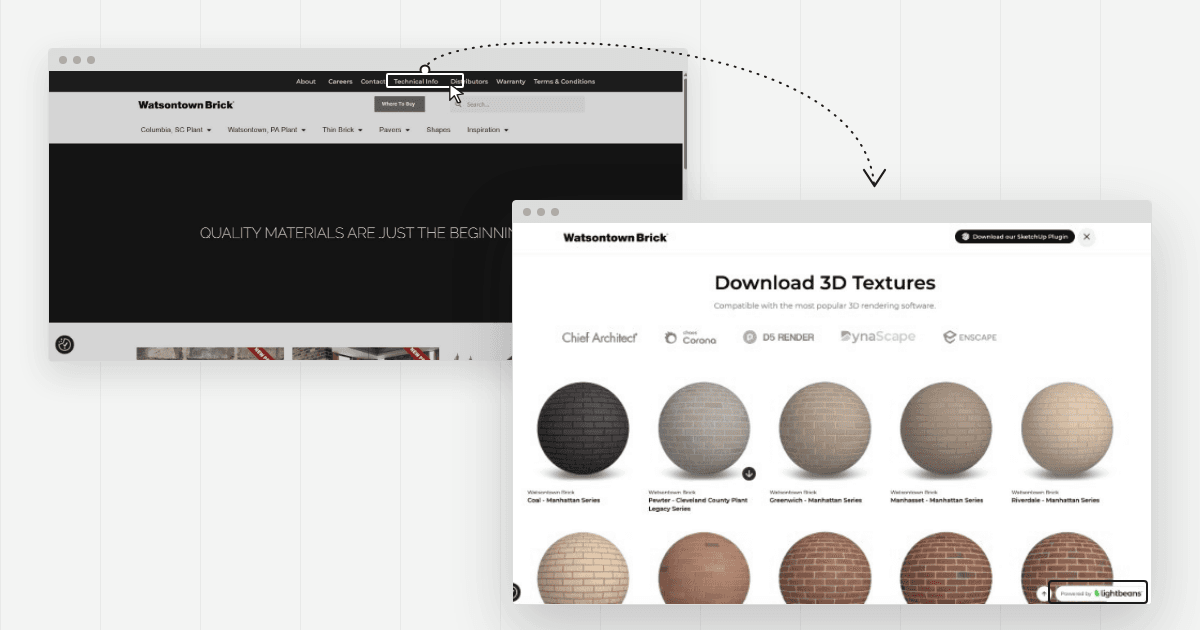
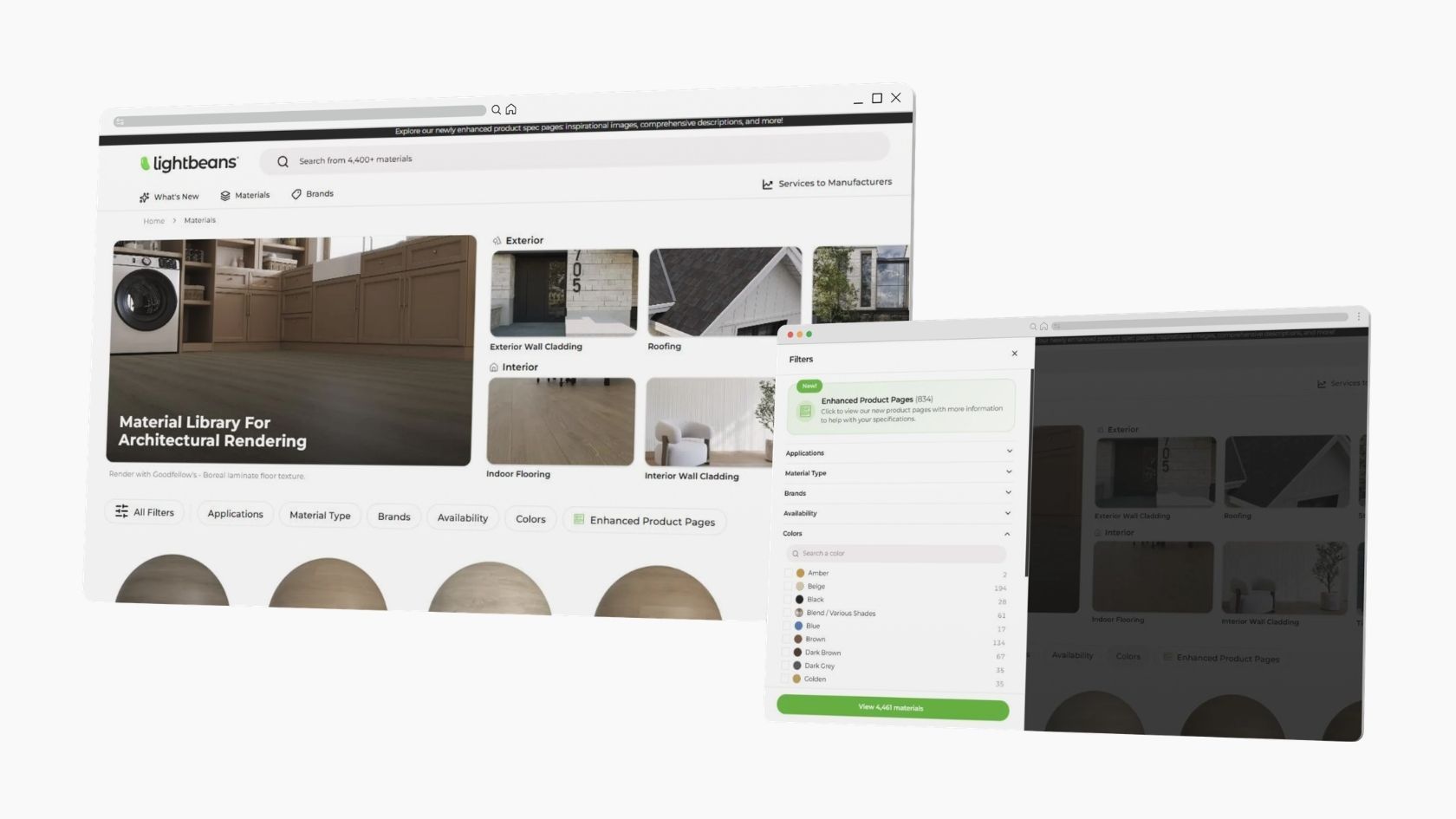
Lightbeans is a professional library of photorealistic PBR (Physically Based Rendering) textures used by architects, designers, and visualization artists. Every texture on Lightbeans is a seamless, tileable PBR material set (albedo, normal, roughness, displacement, AO) scanned directly from a physical brand product, so the finishes in your renders match a product your client can actually specify and order. Free downloads for commercial and educational use are funded by the brands.
D5 Render is a real-time, path-tracing render engine built for architectural visualization. It supports full PBR texture workflows, making it an great match for Lightbeans assets. This guide covers everything you need to know to import Lightbeans PBR textures into D5 Render and get photorealistic results.
Step 1: Download Your Lightbeans Texture for D5 Render
Before importing, make sure you download the correct file formats from Lightbeans.
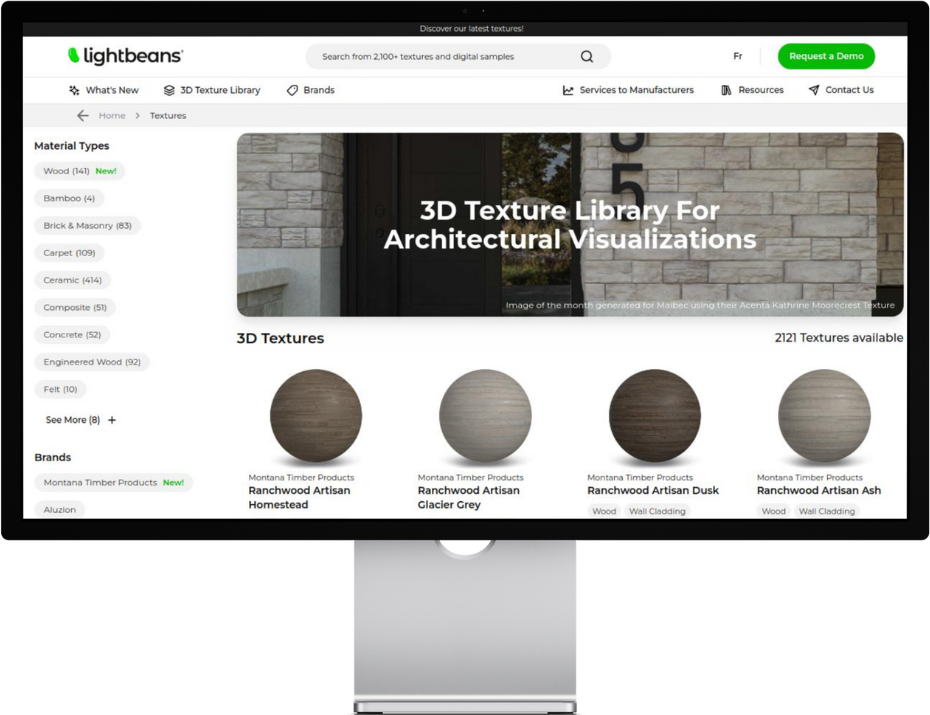
- Head over to lightbeans.com/textures
- Click on a texture sphere
- Click the Download 3D Texture button at the bottom right
- In the popup, enable D5 Render as a target application
- Hit the download button, then extract the .zip file
Your downloaded folder will contain all the PBR maps you need: Color, Normal, Roughness, Displacement, and AO.
Step 2: Import a Lightbeans PBR Texture into D5 Render
D5 Render's material system supports the full Lightbeans PBR map set. Here's the complete workflow:
2.1 Add an Object to Your Scene
A material must be applied to an object. Add one to your D5 project before proceeding, either by importing a model or using a primitive surface as a test object.
2.2 Select the Object's Material
- In your open D5 project, activate the material selector by clicking the eyedropper icon at the top left of the viewport, or press the
Ihotkey - Click on the object you want to texture
- The Inspector panel will open in the right-hand pane, focused on the object's material
2.3 Choose the Right Material Type
D5 Render uses different material types that expose different input slots. Since Lightbeans textures include displacement maps, choosing the correct type is essential:
- At the top of the Inspector panel, click the material type dropdown
- Select a Displacement material type, this unlocks the displacement input socket that standard custom materials don't expose by default
- For transparent surfaces (e.g., glass, fabric with opacity), select the appropriate material type from the dropdown to access the correct input sockets
Why this matters: If you use the default Custom material type without displacement support, you won't be able to use Lightbeans' displacement map, which is responsible for the surface's real 3D depth detail.
2.4 Import All Texture Maps — Use Batch Import
You can assign maps individually by clicking the blank icon next to each input socket, but D5 Render's batch import feature is much faster and does the work for you:
- Click the batch import icon at the top of the Inspector panel
- Navigate to your downloaded Lightbeans texture folder
- Select all relevant map files at once
- D5 Render will automatically detect and assign each map to the correct slot
Maps that D5 Render will assign automatically include:
- Color (Albedo) → base color slot
- Roughness → roughness slot
- Normal → normal map slot
- Displacement → displacement slot
- AO (Ambient Occlusion) → AO slot
2.5 Assign Real-World Scale
Ensure your texture is scaled correctly to maintain physical realism in the scene. Lightbeans provides the real-world dimensions for each texture in the productmetadata.txt file included in the downloaded package. Use this value to set the tiling or UV scale of the material in D5's Inspector panel.
2.6 Save the Material to Your D5 Asset Library
Once your material is set up, save it for easy reuse across projects:
- At the top of the material Inspector window, click Add to Local
- The material will be added to D5's local asset library and will be available in future projects without needing to re-import
Frequently Asked Questions
Does D5 Render support PBR textures? Yes. D5 Render has full PBR texture support, including Color, Roughness, Normal, Displacement, and AO maps. It is one of the most complete render engines for using Lightbeans textures.
What Lightbeans maps work in D5 Render? All Lightbeans maps are supported: Color (Albedo), Roughness, Normal, Displacement, and AO. Select a Displacement material type in D5 to access the displacement input socket.
What is the batch import feature in D5 Render? Batch import lets you select all PBR map files at once and have D5 automatically assign each one to the correct material slot, saving time compared to assigning maps manually one by one.
Can I reuse a Lightbeans material across multiple D5 projects? Yes. After setting up your material, click "Add to Local" in the material Inspector to save it to D5's local asset library. It will be available in all future projects.
Tips for Best Results
- Always use the Displacement material type when working with Lightbeans textures. It unlocks the displacement input and gives your surfaces real 3D depth, not just a flat appearance.
- Batch import every time. It's faster and eliminates the risk of assigning the wrong map to the wrong slot.
- Check the real-world scale. Use the dimensions in productmetadata.txt to set the correct tiling. Incorrectly scaled textures are one of the most common reasons PBR materials look unconvincing in renders.
- Save materials to your local library. Building a personal library of pre-configured Lightbeans materials in D5 speeds up every future project.
Summary
D5 Render supports the full Lightbeans PBR texture workflow, including displacement maps. The process involves selecting an object, activating the material selector, choosing a Displacement material type, and using D5's batch import feature to assign all maps automatically. Once configured, materials can be saved to D5's local asset library for reuse.
Need some help? Contact our team at info@lightbeans.com
Check Out Our Library
Lightbeans offers an impressive array of textures that will give you a hand in your design and architecture projects.
View the Library