

How to Use Lightbeans Textures in Lumion
A step-by-step guide to importing Lightbeans PBR textures into Lumion.
Last updated: 2026
What Is Lightbeans and Why Use It in Lumion?
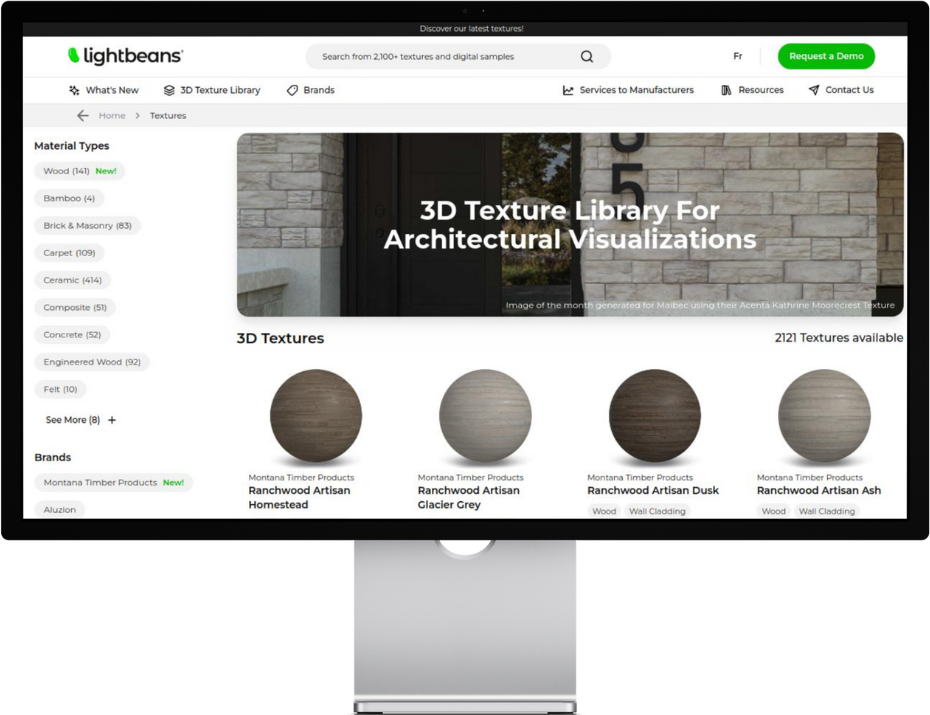
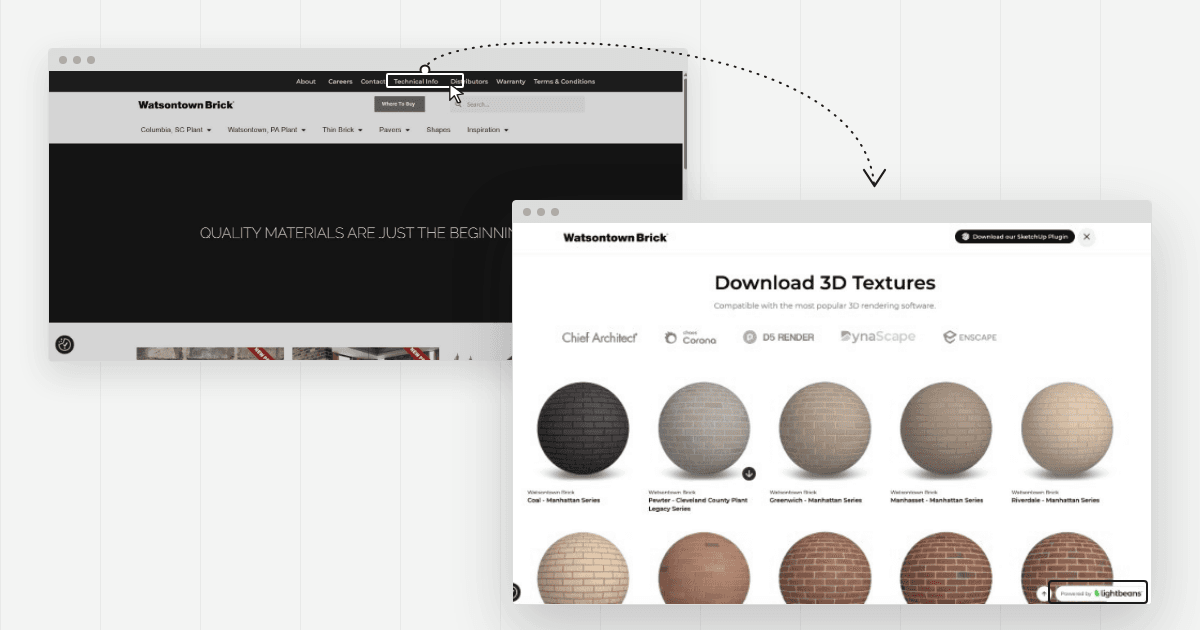
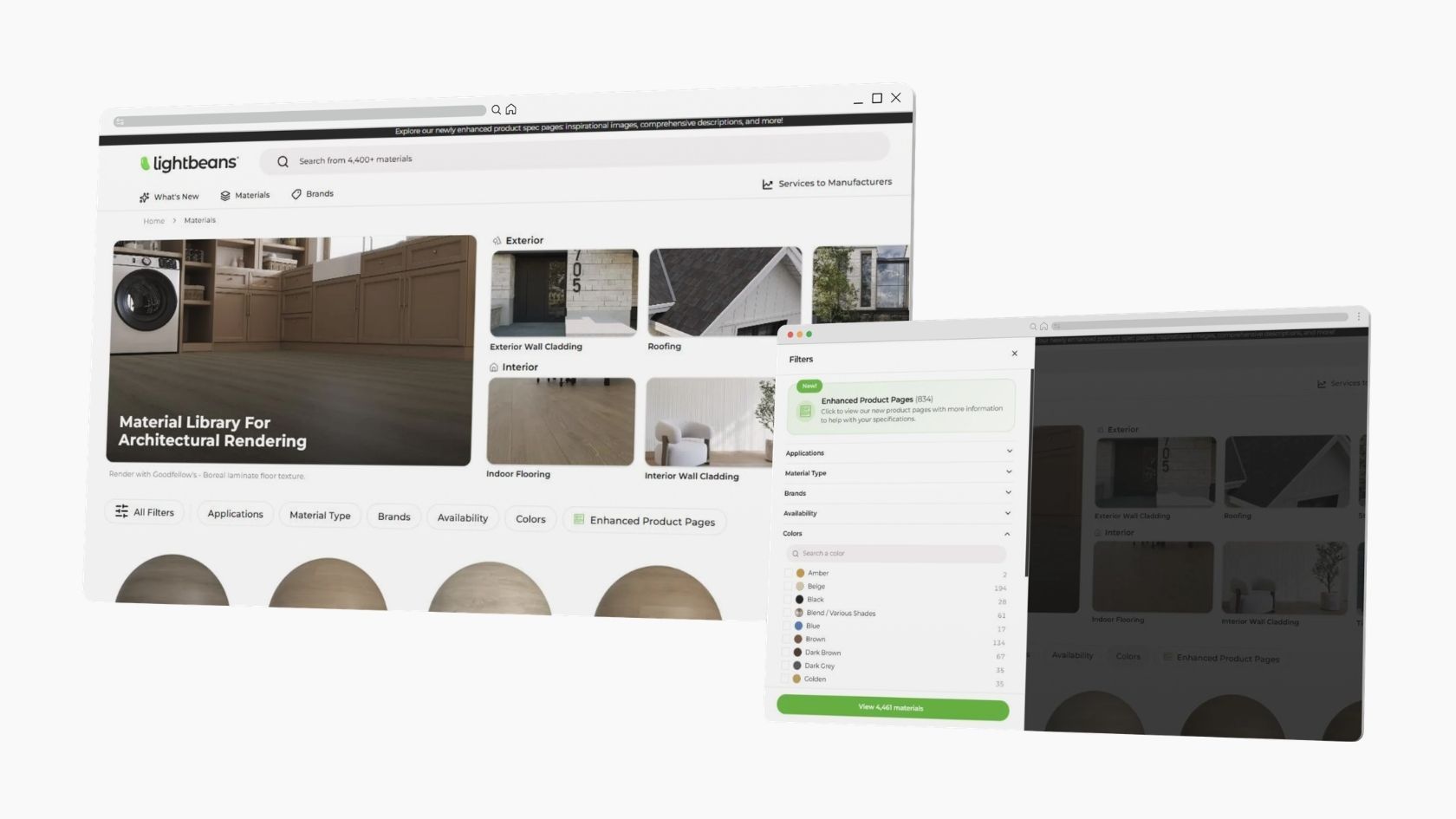
Lightbeans is a professional library of photorealistic PBR (Physically Based Rendering) textures used by architects, designers, and visualization artists. Every texture on Lightbeans is a seamless, tileable PBR material set (albedo, normal, roughness, displacement, AO) scanned directly from a physical brand product, so the finishes in your renders match a product your client can actually specify and order. Free downloads for commercial and educational use are funded by the brands.
Lumion is a real-time architectural visualization software widely used by architects and designers for its fast rendering and intuitive workflow. Lumion 2023 and later versions support a full PBR texture workflow, making them the recommended versions for working with Lightbeans assets. This guide covers everything you need to know to import Lightbeans PBR textures into Lumion.
Step 1: Download Your Lightbeans Texture for Lumion
Before importing, make sure you download the correct file formats from Lightbeans.
- Head over to lightbeans.com/textures
- Click on a texture sphere
- Click the Download 3D Texture button at the bottom right
- In the popup, enable Lumion as a target application
- Hit the download button, then extract the .zip file
Your downloaded folder will contain all the PBR maps you need: Color, Normal, Roughness, Displacement, and AO.
Step 2: Select the Object and Open the Material Editor
- In Lumion, select the model or surface you want to texture
- Click the Material tab
- Click on the object to open the material editor
Step 3: Create a New Custom Material
- In the material editor, select the New tab to create a custom material rather than using a preset
- Click the Settings tab at the top of the window to access the individual map input slots
Step 4: Assign Texture Maps
For each map, click the blank square next to the input name. When you hover over it, the text Load Map will appear. Click it and navigate to your downloaded Lightbeans texture folder to select the correct file:
- Color (Albedo) — load the Color map into the base color input
- Roughness — load the Roughness map into the roughness input
- Normal (Relief) — load the Normal map into the Relief input — see the fix required below
- Displacement — load the Displacement map (Lumion uses parallax displacement, not true geometry displacement)
- AO — load the AO map into the ambient occlusion input
Note: Lumion does not currently support our rectangular image format, which may cause distortion and inverted stretching for displacement maps. This issue will be resolved with the release of Lumion's new engine in 2027.
Step 6: Assign Real-World Scale
Ensure maps are correctly scaled to the surface to maintain physical realism. Lightbeans provides the real-world dimensions for each texture in the productmetadata.txt file included in the downloaded package. Use this value to set the correct tiling in Lumion's material scale controls.
Frequently Asked Questions
Does Lumion support PBR textures? Yes, from Lumion 2023 onward. Lumion 2023+ supports Color, Roughness, Normal, Displacement (via parallax), AO, Opacity, and Subsurface map inputs.
What Lightbeans maps work in Lumion? All Lightbeans maps are supported in Lumion 2023+: Color (Albedo), Roughness, Normal, Displacement, and AO.
Does Lumion support displacement maps? Yes, but not as true geometry displacement. Lumion uses parallax displacement, which simulates surface depth convincingly for most architectural use cases without modifying actual geometry.
Summary
Lumion 2023 and later versions support the full Lightbeans PBR texture workflow. The process involves selecting an object, opening the material editor, creating a new custom material, and assigning Color, Roughness, Normal, Displacement, and AO maps from the downloaded Lightbeans folder via the Load Map option in the Settings tab.
You can also view Lumion’s official comprehensive guide on materials.
Need some help? Contact our team at info@lightbeans.com
Check Out Our Library
Lightbeans offers an impressive array of textures that will give you a hand in your design and architecture projects.
View the Library