

How to Use Lightbeans Textures in Archicad
A step-by-step guide to importing Lightbeans textures into Archicad.
What Is Lightbeans and Why Use It in Archicad?
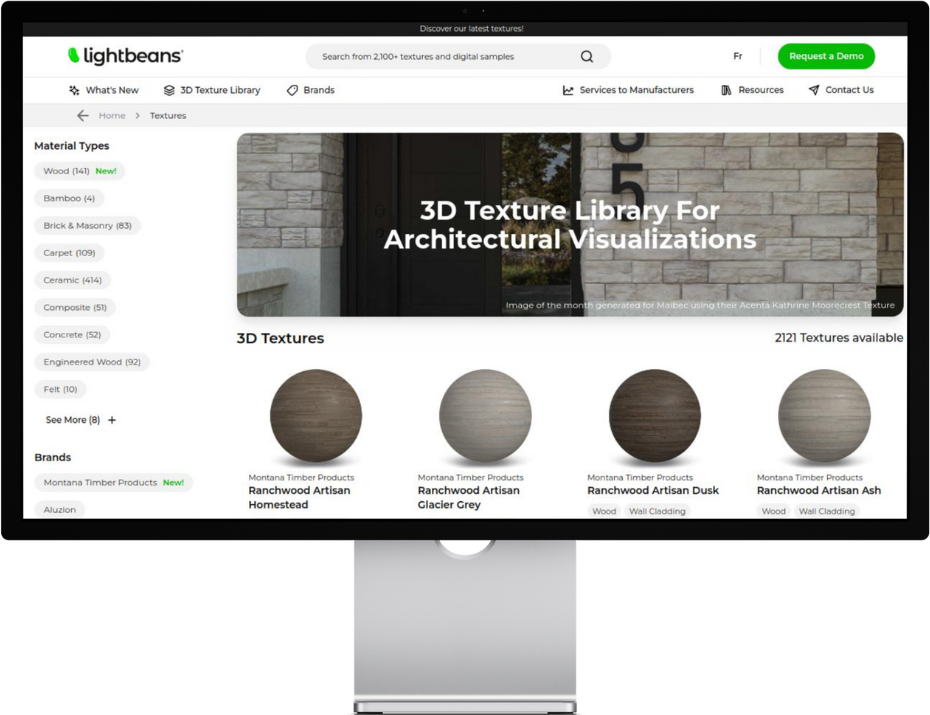
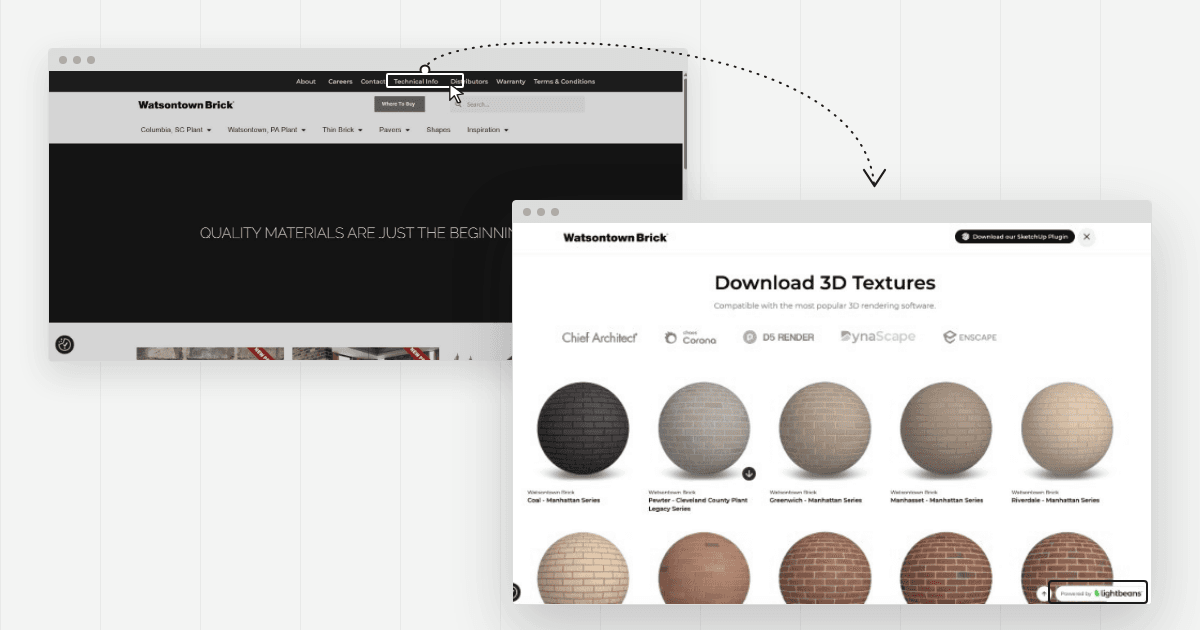
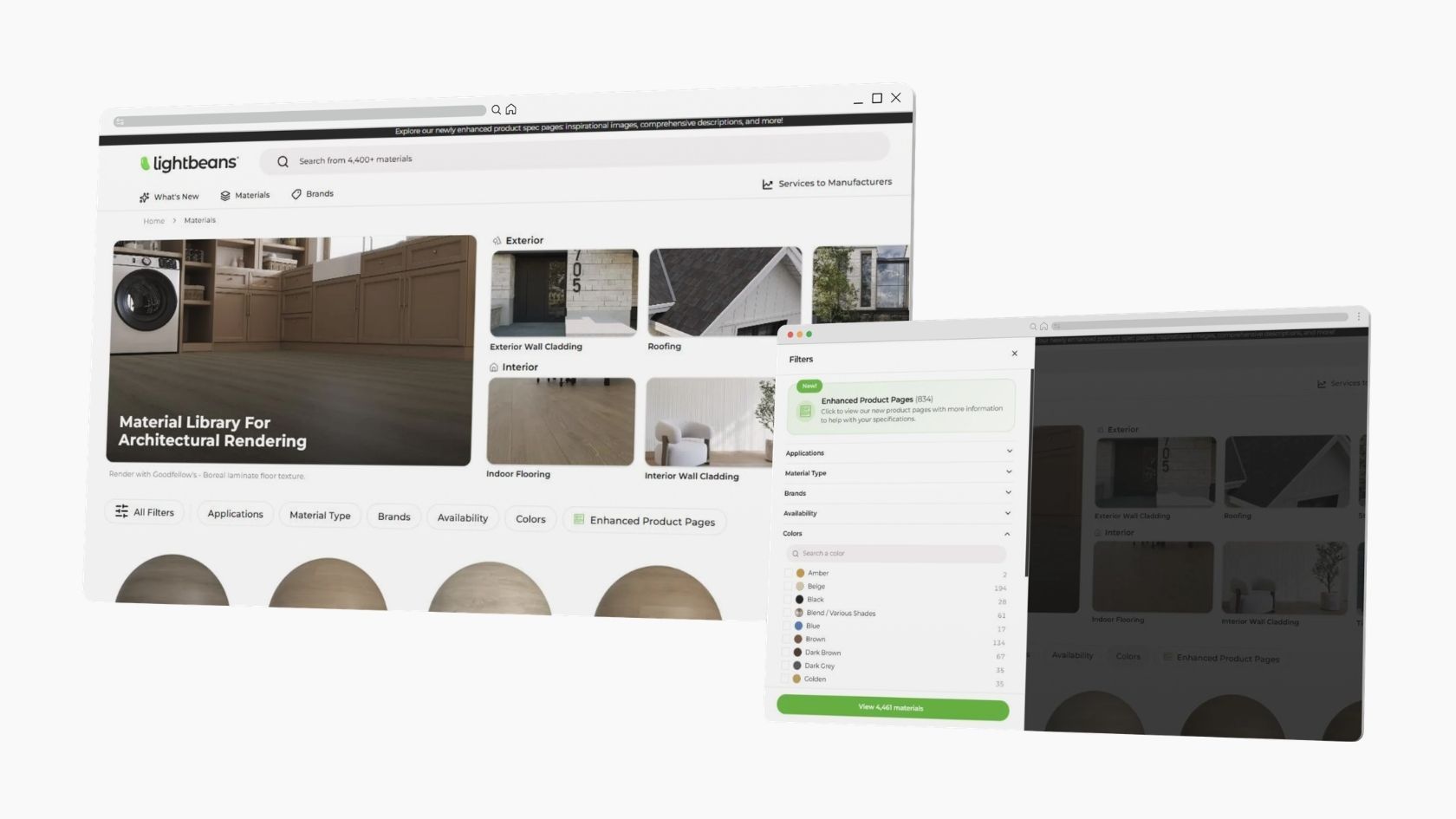
Lightbeans is a professional library of photorealistic PBR (Physically Based Rendering) textures used by architects, designers, and visualization artists. Every texture on Lightbeans is a seamless, tileable material set scanned directly from a physical brand product, so the finishes in your renders match a product your client can actually specify and order. Free downloads for commercial and educational use are funded by the brands.
Archicad is a professional BIM software widely used by architects for design, documentation, and visualization. It includes built-in rendering engines (CineRender and Redshift) which are primarily suited for quick concept checks rather than final high-quality renders. For production-quality output, we recommend pairing Archicad with a dedicated render engine such as Enscape, which has its own Lightbeans Enscape integration tutorial.
Below are some other software integration tutorials for render engines:
If you still want to use Lightbeans textures directly within Archicad's built-in rendering engines, this guide covers the correct workflow.
Important: When working directly in Archicad, a faster way to import materials is to only use the map files ending with _plane from your downloaded Lightbeans folder. These are the flat, non-PBR versions optimized for Archicad's rendering pipeline. Alternatively, here's the full PBR workflow in Archicad.
Step 1: Download Your Lightbeans Texture for Archicad
- Head over to lightbeans.com/textures
- Click on a texture sphere
- Click the Download 3D Texture button at the bottom right
- Select Archicad as the target application
- Download the texture and extract the .zip file
Step 2: Open the Surfaces Dialog
- In Archicad, go to Options > Surfaces
- This opens the Surfaces (Materials) dialog where all scene materials are managed
Step 3: Duplicate an Existing Material
Rather than creating a material from scratch, Archicad's workflow starts from duplicating an existing library material:
- From the material list, select a library material similar to the one you want to create (e.g., select a concrete material if you are working with a Lightbeans concrete texture)
- Click New > Duplicate, then confirm
- Give your new material a distinct, descriptive name (e.g., "Lightbeans_Concrete_001")
Step 4: Assign the Color Map
- In the material editor, locate the Color input
- Click the dots icon to open a file browser popup
- Navigate to your downloaded Lightbeans folder
- Select the Color map file
Step 5: Assign the Roughness Map
- Locate the Roughness texture slot under the Reflectance input
- Click the dots icon and navigate to your Lightbeans folder
- Select the Roughness map file
Step 6: Assign the Normal Map
- Locate the Normal input in the material editor
- Click the dots icon and navigate to your Lightbeans folder
- Select the Normal map file
Step 7: Assign the Displacement Map (Bump Slot)
Archicad does not have a dedicated displacement input. The Lightbeans Displacement map can be used in the Bump slot as an approximation of surface relief:
- Locate the Bump input in the material editor
- Click the dots icon and navigate to your Lightbeans folder
- Select the Displacement map file
Step 8: Set the Real-World Scale
Ensure maps are correctly scaled to the surface to maintain physical realism. Lightbeans provides the real-world dimensions for each texture in the productmetadata.txt file included in the downloaded package. Use this value to set the correct texture scale in Archicad's material editor.
Frequently Asked Questions
Does Archicad support PBR textures? Partially. Archicad supports Color, Roughness, Normal, and Bump map inputs through its built-in CineRender and Redshift engines. These engines are best suited for concept checks rather than final production renders. For full PBR fidelity and production-quality output, pair Archicad with Enscape.
Can I use Lightbeans textures with Enscape inside Archicad? Yes. Archicad supports Enscape as a rendering plugin. If you use Enscape with Archicad, follow the Lightbeans Enscape tutorial instead for the full PBR workflow and best results.
Where is the Roughness map slot in Archicad? The Roughness map slot is located under the Reflectance input in Archicad's material editor, not in the main Color section.
Does Archicad support displacement mapping? Not natively. The Lightbeans Displacement map can be loaded into the Bump slot as a surface relief approximation, but it does not produce true geometric displacement.
Tips for Best Results
- Duplicate a similar existing material. Archicad's material system is easier to work with when starting from a relevant library material rather than a blank slate. Pick one that matches the physical category of your Lightbeans texture.
- Consider using Enscape or another render engine for final output. Archicad's built-in rendering engines are suited for quick concept checks. For client-ready renders with full PBR fidelity, pair Archicad with Enscape and follow the dedicated Lightbeans Enscape tutorial.
- Check the real-world scale. Use the dimensions in productmetadata.txt to set the correct texture scale. Incorrectly scaled textures are one of the most common reasons materials look unconvincing in renders.
Summary
Archicad supports Lightbeans textures through its built-in rendering engines (CineRender and Redshift), which are best suited for quick concept visualization. The process involves opening Options > Surfaces, duplicating a similar existing material, and assigning the Color, Roughness, Normal, and Displacement (_plane) maps to their respective slots via the dots icon file browser. For production-quality renders with full PBR fidelity, pair Archicad with Enscape.
Need some help? Contact our team at info@lightbeans.com
Check Out Our Library
Lightbeans offers an impressive array of textures that will give you a hand in your design and architecture projects.
View the Library