


How to Use Lightbeans Textures in SoftPlan
A step-by-step guide to importing and applying Lightbeans PBR textures in SoftPlan.
What Is Lightbeans and Why Use It in SoftPlan?
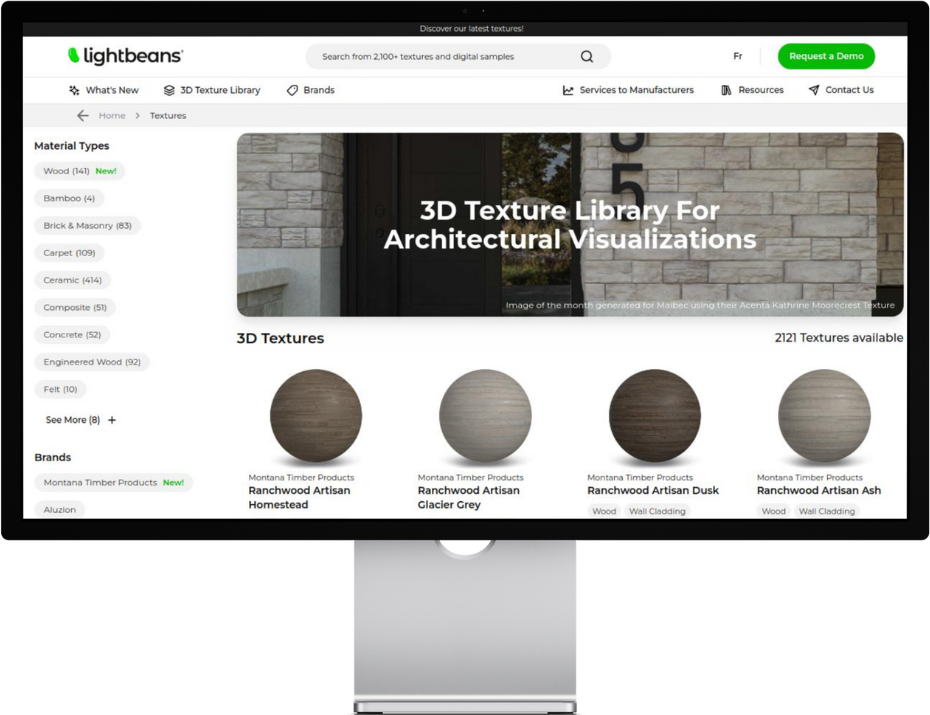
Lightbeans is a professional library of photorealistic PBR (Physically Based Rendering) textures used by architects, designers, and builders. Every texture on Lightbeans is a seamless, tileable PBR material set (albedo, normal, roughness, displacement, AO) scanned directly from a physical brand product, so the finishes in your renders match a product your client can actually specify and order. Free downloads for commercial and educational use are funded by the brands.
SoftPlan is a professional home design and architectural drafting software widely used by residential designers and builders. It includes a native Lightbeans integration that allows you to browse and download textures directly from within SoftPlan, without leaving the application. This guide covers everything you need to know to import Lightbeans PBR textures into SoftPlan and apply them to your 3D model.
Step 1: Open the Lightbeans Import Tool
SoftPlan includes a dedicated tool for importing Lightbeans textures directly. There are two ways to access it:
Option A — via the menu:
- Switch to a 3D view in SoftPlan
- Go to File > Import > Download Texture
Option B — via the toolbar:
- Switch to a 3D view in SoftPlan
- Click the Download PBR Texture icon in the toolbar (next to the SketchUp file importer).
Both options open a window directly to the Lightbeans texture library.
Step 2: Browse and Download a Texture
- Browse the Lightbeans library from within the SoftPlan window
- Click on a texture to open its detail page
- Select SoftPlan as your target application in the download settings
- If you also plan to render in Lumion, enable Lumion as well
- Click the download button — a popup will confirm the download and show the file location on your computer
- The texture is automatically saved to a dedicated Lightbeans folder within SoftPlan
Step 3: Apply the Texture to a Surface
- In your 3D view, select the Surface Edit tool
- Click on the surface you want to texture
- In the material options, navigate to the Lightbeans folder where your downloaded texture was saved
- Select the texture and apply it to the surface
Step 4: Check the Scale
Ensure the texture is scaled correctly to maintain physical realism. Lightbeans provides the real-world dimensions for each texture in the productmetadata.txt file included in the downloaded package. Use this value to set the correct scale in SoftPlan's surface material settings. Navigate to the Options tab on the left menu, toggle the Scale option to active, and manually input your desired X and Y dimensions to resize the texture.
Incorrectly scaled textures are one of the most common reasons PBR materials look unconvincing in renders. Always verify the scale after applying a new texture.
Step 5: Activate DirectX 12 Displacement Mapping
In the renderer mode options, switch to DirectX 12. Then, in the material options tab, toggle the Displacement Mapping option to active and enter a value.
Alternatively, you can also assign a profile within the wall definition prior to applying the texture.
Frequently Asked Questions
Does SoftPlan have a native Lightbeans integration? Yes. SoftPlan includes a built-in Lightbeans import tool accessible via File > Import > Download Texture, or via the Lightbeans icon in the 3D view toolbar. It opens the Lightbeans library directly inside SoftPlan.
Do I need to download textures manually from the Lightbeans website? No. The native integration handles the download from within SoftPlan. Textures are automatically saved to a dedicated Lightbeans folder on your computer.
Which download settings should I select for SoftPlan? Select SoftPlan as your target application. If you also use Lumion for rendering, enable Lumion at the same time so a single download includes the correct files for both applications.
Where are downloaded textures saved? Textures are automatically saved to a dedicated Lightbeans folder within SoftPlan's file structure. The exact location is shown in the popup that appears after each download.
How do I apply a downloaded texture to a surface? Use the Surface Edit tool in the 3D view to select a surface, then navigate to the Lightbeans folder in the material options and apply the downloaded texture.
Does SoftPlan support PBR textures? Yes. SoftPlan's PBR support allows you to apply physically based rendering textures to 3D surfaces for highly realistic exterior and interior visualizations.
Tips for Best Results
- Use the toolbar icon for quick access. The Lightbeans icon in the SoftPlan 3D toolbar is the fastest way to open the library without navigating through the menu.
- Select both SoftPlan and Lumion if you render externally. Enabling both in the download settings ensures you get the correct file formats for SoftPlan and for Lumion rendering in a single download.
- Always check the scale after applying a texture. Use the real-world dimensions in productmetadata.txt to set the correct scale. A texture applied at the wrong size will look tiled or stretched, regardless of its quality.
- Apply textures in the 3D view. The Surface Edit tool is only available in the 3D view. Make sure you are in 3D mode before selecting surfaces.
Summary
SoftPlan includes a native Lightbeans integration accessible via File > Import > Download Texture or the Lightbeans toolbar icon in any 3D view. From there, you can browse the Lightbeans library, select SoftPlan (and optionally Lumion) as your target application, and download textures directly into a dedicated Lightbeans folder on your computer. Textures are applied to 3D surfaces using the Surface Edit tool. Always verify the texture scale using the real-world dimensions provided in the productmetadata.txt file included with each download.
Need some help? Contact our team at info@lightbeans.com
Check Out Our Library
Lightbeans offers an impressive array of textures that will give you a hand in your design and architecture projects.
View the Library